Appearance
Creating Experiments
Create experiments using AI suggestions, prompts, or manual edits.
Dalton Suggestions
When your page is scanned, Dalton proposes new high-impact tests based on CRO best practices. You review each proposal and decide which ones to act on — nothing is selected or launched automatically. Accept a proposal as-is to launch it, or refine it first with a prompt.
Selecting Elements
The editor is interactive: click any element on your page to select it. The selected element is highlighted, and Dalton's AI receives it as context — so every prompt and manual edit is scoped to exactly what you picked.
Prompting
With an element selected, describe the change you want and Dalton builds the experiment for you:
- Create a new experiment — Click an element and tell Dalton what to change. E.g. 'Add social proof underneath this element.'
- Iterate on an existing experiment — Prompt again to adjust its style and content.
Because the AI already sees the element you selected, prompts can stay short — you don't need to describe where the change should go.

For detailed guidance on writing effective prompts, see Prompting Best Practices.
Manual Creation
Prefer to build the change yourself? Click an element and choose manual creation. A modal opens where you define the variant by hand instead of prompting — useful when you know exactly what you want.
Multi-Page Experiments
Want to run the same experiment across all your product pages, category pages, or blog posts? See Multi-Page Experiments for how to set up URL wildcards and avoid common pitfalls.
What You Can Test
| Element Type | Can Test? | Notes |
|---|---|---|
| Headlines & text | Yes | Any text element |
| CTAs & buttons | Yes | Copy, color, size |
| Section order | Yes | Move elements up/down |
| New elements | Yes | Banners, badges, social proof |
| Layout & spacing | Yes | Via prompts |
| Images & videos | No | Use URL Split Tests instead |
| Navigation menus | No | Requires backend changes |
| Dynamic content | No | Prices, inventory, etc. |
Mobile & Desktop View
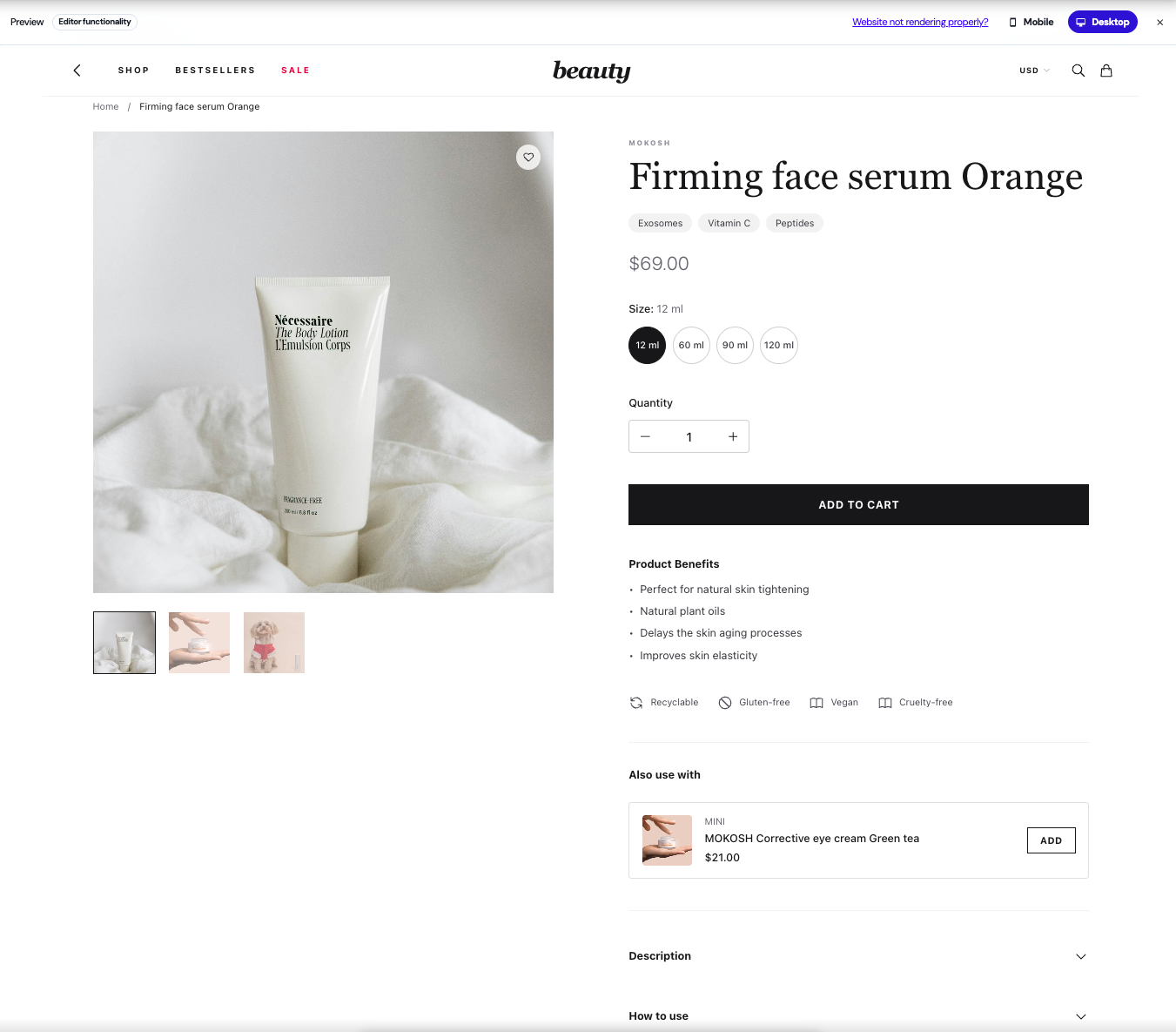
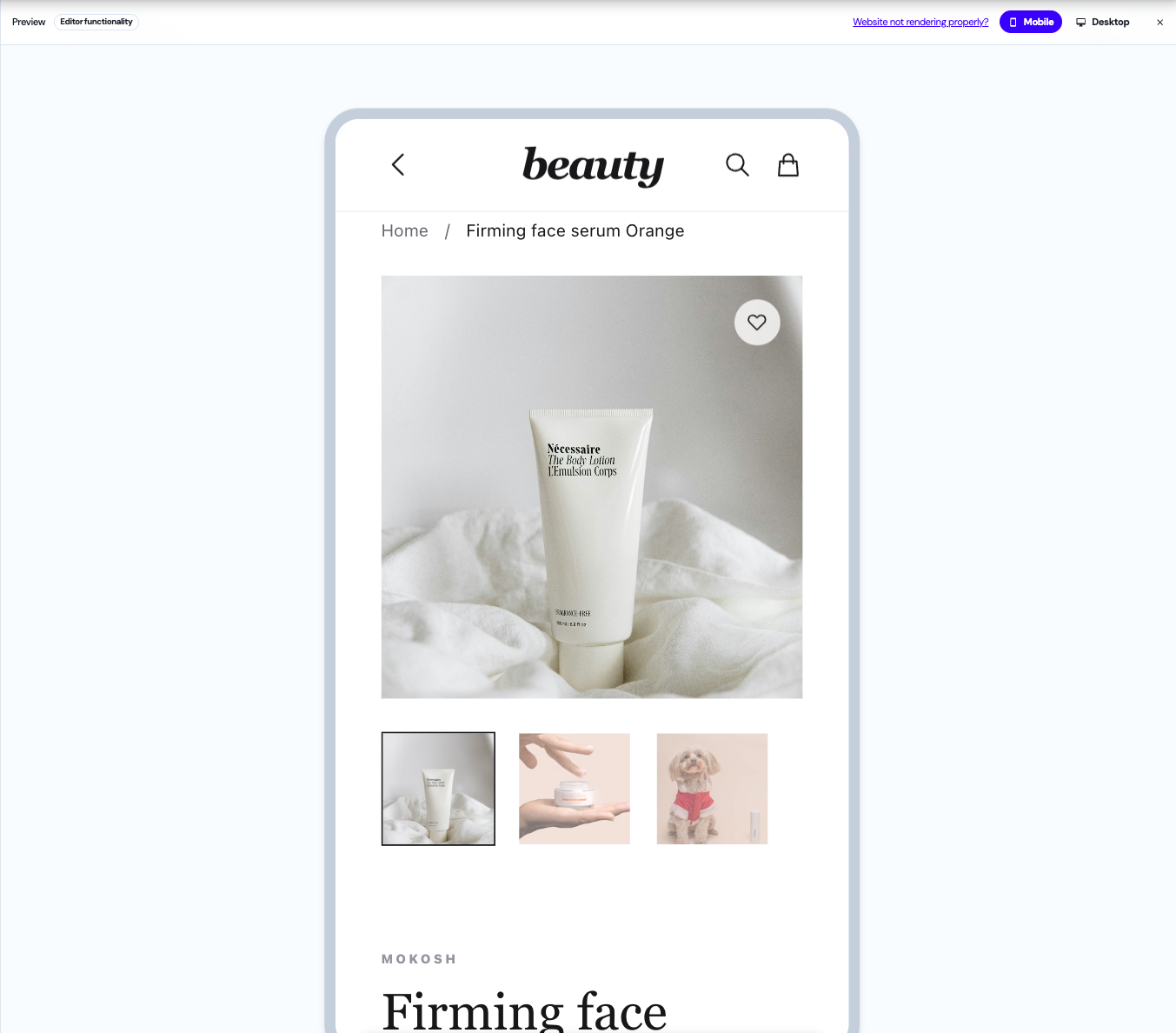
Preview and edit your experiments on both mobile and desktop directly in the editor.
Toggle here between desktop and mobile