

Appearance
Your first experiment
Two ways in. The CRO Agent hands you a test that is already built. Or you pick the pages yourself.
Not installed yet? Start with Installation.
The short way: from the CRO Agent
Open CRO Agent. Each opportunity has a proposed test attached. Open test builds it and opens the editor with a variant already made, so there is no targeting to define and no first prompt to write.
Skip to step 3. Everything below is the manual route, for your own ideas.
1. Pick the pages
Experiments → New experiment. Choose a targeting group or create one. Watch time to results: if it says six weeks, widen the targeting now.
Start where the traffic is
A home page or product template resolves in a fortnight. A quiet landing page may never resolve. For a first test, you want to see a result.
2. Build the variant
The editor opens with your variants on the left, a live preview in the middle, and the Agent on the right. See Using the editor.
Describe the change
Take one of the suggested starting points, or describe the change yourself. To change one element, click it in the preview first, so a short instruction is enough.
Add a sticky add-to-cart bar on mobile that shows the product name, price and button once the visitor scrolls past the buy box.
Every change is listed in the left panel. See Editor agent.
3. See it the way your visitors will
Open Preview on each variant:
- Preview on this device opens your live store with the variant on, exactly as a visitor in that group will see it.
- Preview on mobile shows a QR code. Most stores take most of their traffic on phones, so check this one.
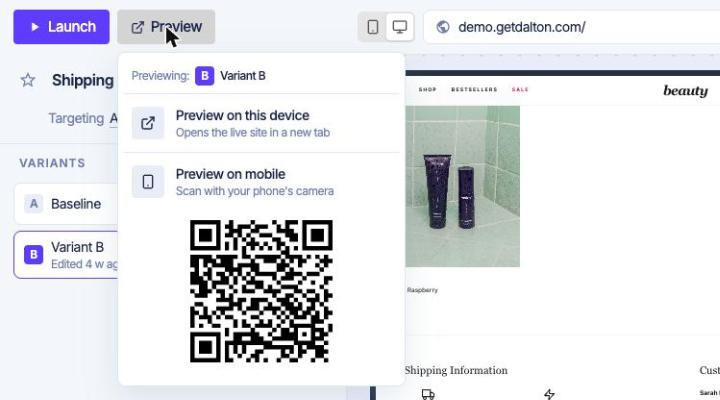
While you look, check three things:
- The copy. The agent writes in your brand voice but doesn't know your promises. Check any claim about delivery, returns or pricing.
- Both screen sizes. A change that fits on desktop can wrap or overlap on mobile.
- Several pages, if the test runs on many. On a product template, open 3 to 5 different products.
Previews don't count in your results, and they don't change which variant you get as a normal visitor.
Get the Dalton Chrome extension
With the Dalton extension, Preview on this device works even before the Dalton script is on your site.
4. Launch
Launch opens a short review, then puts it live. Traffic splits evenly and Dalton commits to a conclusion date. If something looks wrong later, pause the test, fix it in the editor and relaunch.
Then leave it alone. Come back when it shows Action required, read the result, and deploy the winner or conclude the test. What each status means, and what to do: status table.
Notifications are off until you turn them on. To hear when results come in, set them under User settings → My notifications.