

Appearance
Using the Editor
The editor is where a test gets built. Describe a change to the agent, check it on desktop and mobile, and launch it.
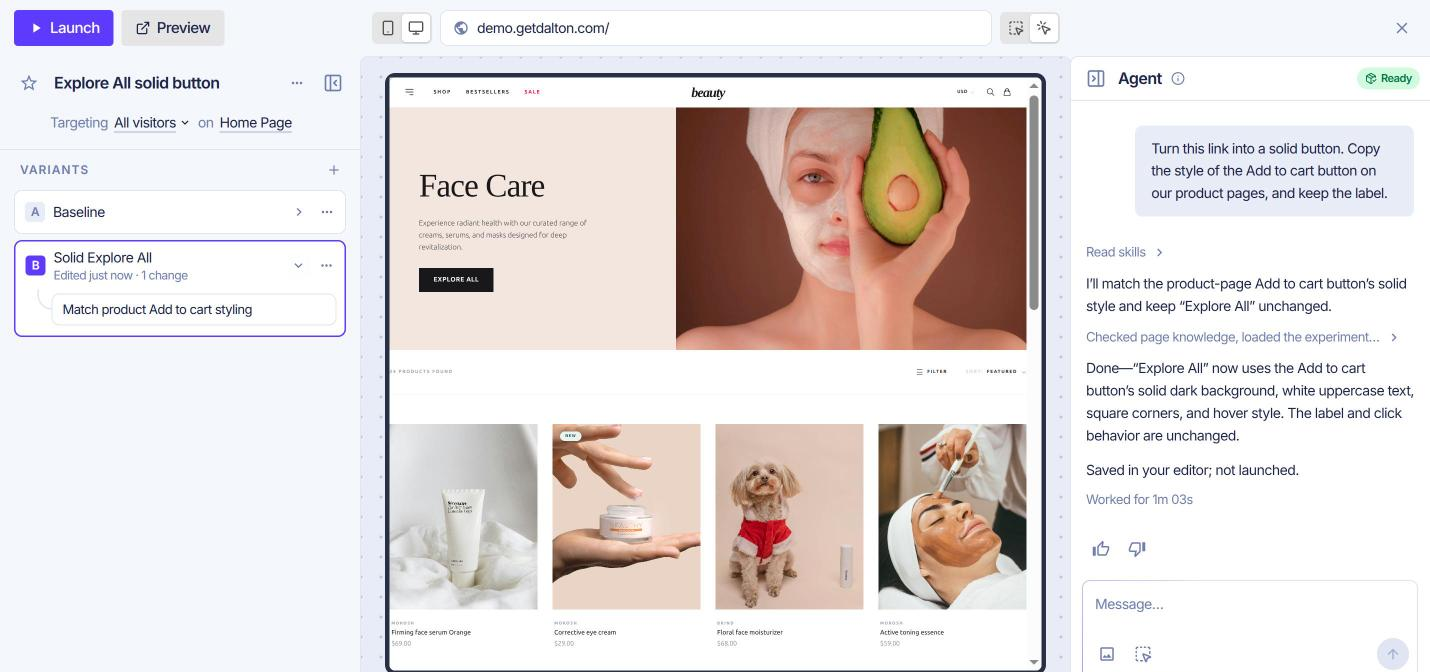
Three columns sit under one top bar:
- Left pane: the experiment, its targeting, and its variants with their changes.
- Canvas: your site with the selected variant applied.
- Agent: the chat that builds and edits variants.
A new experiment opens with the left pane folded into a rail of variant letters. It unfolds once the first change lands.
The top bar
| Control | What it does |
|---|---|
| Launch | Opens the launch review. Reads Building... while the agent works. A running test shows Stop instead, and a paused one Resume. |
| Preview | Preview on this device opens your site in a new tab with the variant forced on. Preview on mobile shows a QR code for your phone. Both need the Dalton script installed. |
| Device toggle | Switches the canvas between mobile and desktop. A test that runs on one device only locks the other. |
| URL bar | The page on the canvas. Pick another page from the experiment, your top pages, or all pages. A page outside the targeting reads Not part of the test. Make default opens the editor on this page next time. |
| Select / Interact | Select element points the agent at what you click. Interact with the site lets you close popups and navigate. Ctrl/Cmd + click interacts without switching. |
| Scroll overlay | Scroll reach and Scroll attention show how far visitors scroll and where they linger. Appears once the page has enough traffic. |
| × | Exits the editor. Esc does the same. |
The left pane
Experiment and targeting
The experiment name sits at the top. Click it to switch to another experiment. The … menu holds Rename experiment, Copy experiment, Open linked experiment and Delete experiment. The star marks a favourite.
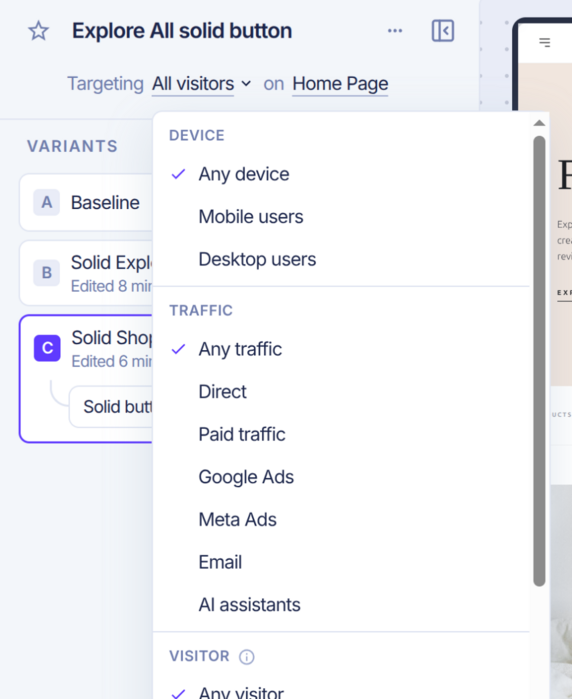
Below the name, one sentence sets who sees the test: Targeting All visitors on Home Page.
- Click the audience to narrow it by Device, Traffic source or Visitor type. Every rule you set must match.
- Click the page group to change which pages run the test. See Targeting Groups.
Targeting locks once the test launches.
Variants and changes
A is the baseline, your page as it is. B, C and onward are the variants. + adds one.
Click a variant to show it on the canvas and unfold its changes. Hover a change to outline it on the page. Click a change to hand it to the agent as context.
- A variant's … menu holds Rename, Duplicate, History and Delete.
- A change's … menu holds Edit code and Delete.
Variants can be added and duplicated only while the test is a draft.
Show deployed experiments, at the bottom of the pane, adds the winners already deployed on this page to the canvas. Build on top of what visitors see today. The arrow beside it lists every deployment on the site. Hover one on this page to outline it, click it to scroll to it, or open it in a new tab.
Editing code by hand
Edit code opens a change in the full pane: the selector it targets, and HTML, CSS and JS tabs. Save applies it.
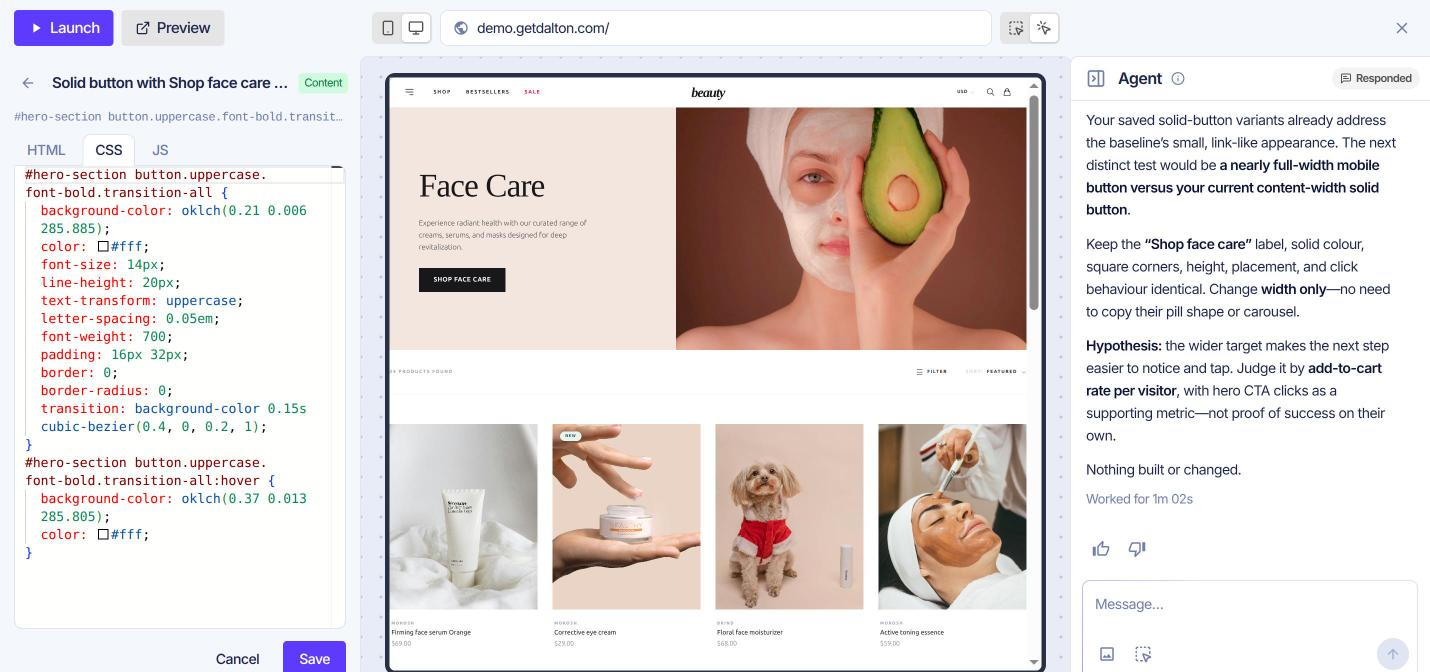
On a live or paused test, the editor asks you to confirm before it saves.
History
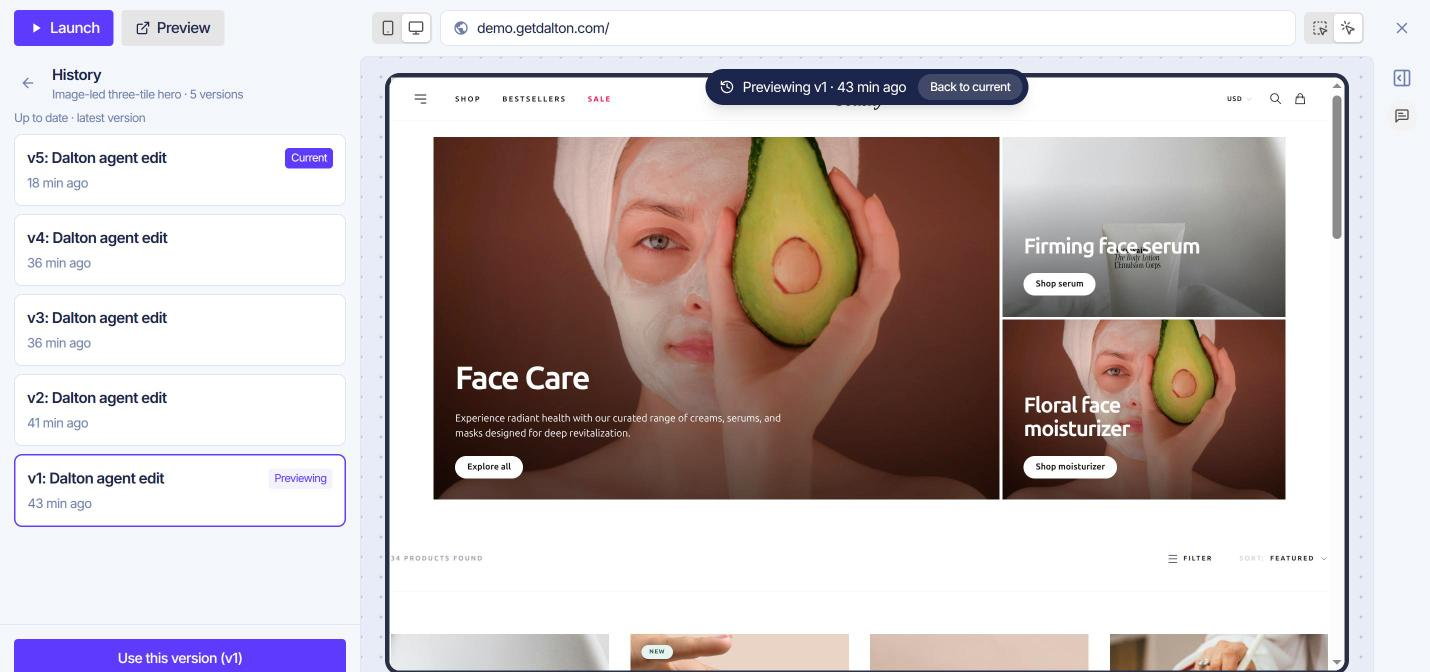
Every edit, by you or the agent, saves a new version of the variant. History in the variant's … menu lists them.
Click a version to preview it on the canvas. Back to current returns. Use this version restores it. On a live or paused test, it asks you to confirm first, since visitors get the restored version.
No undo button
History is how you roll back. Preview first, then restore.
Working with the agent
The agent builds and edits variants from what you describe. Changes save as it makes them, with no separate save step.
- Click Select on website, under the message box, then click elements on the canvas. They attach as numbered Elements.
- Describe the change. Upload image attaches up to four screenshots or examples.
- Send. The badge reads Generating while it works. The change appears in the left pane when it lands.
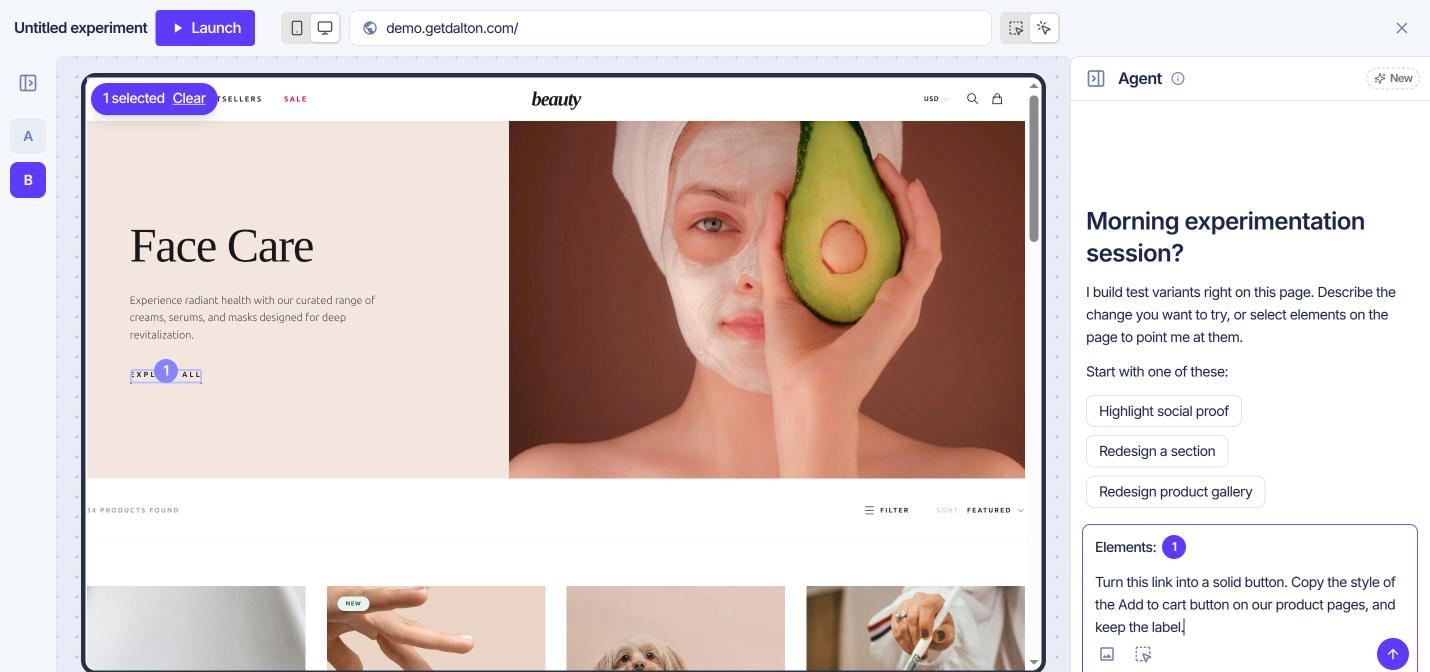
The square button stops a run. On a new experiment, the agent offers starting points such as Highlight social proof. A starting point fills the message box for you to edit before sending.
What to ask, and how: Editor Agent.
Launching
Launch opens a review. Nothing goes live until you confirm.
- Going live: tick the variants to include. The original always runs. Preview opens each one on your site.
- Traffic: split evenly by default. Adjust sets your own split.
- Before you launch: checks on copy, links, and both devices.
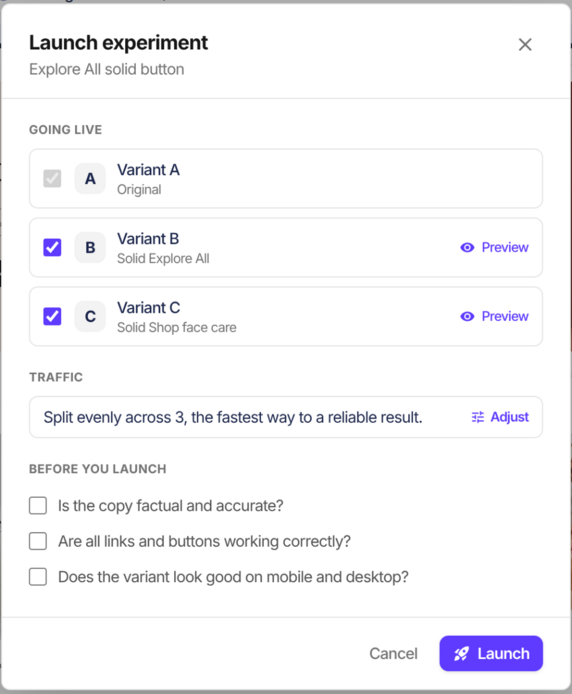
Launch in the review starts the test and opens its results. Stop pauses a running test straight away. Resume goes through the review again. See How Experiments Run.